Connectors
To import corporate analytical data into the AnomalyGuard application, you first need to prepare Data Connectors. Connectors define the connection layer between AnomalyGuard and external data sources such as data warehouses (DWH), CRM systems, internal platforms, or data products.
Note
AnomalyGuard natively supports data sources with ODBC or ADO.NET connectivity. Data can be retrieved in a tabular format using a custom SQL query.
Managing Connectors
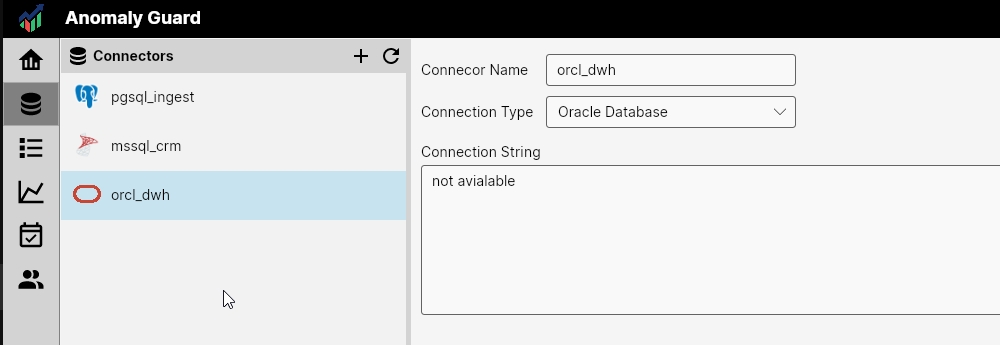
To open the connectors section, click the second button (Connectors) in the left-side menu.
The Connectors page displays all configured data connectors and allows you to manage them.
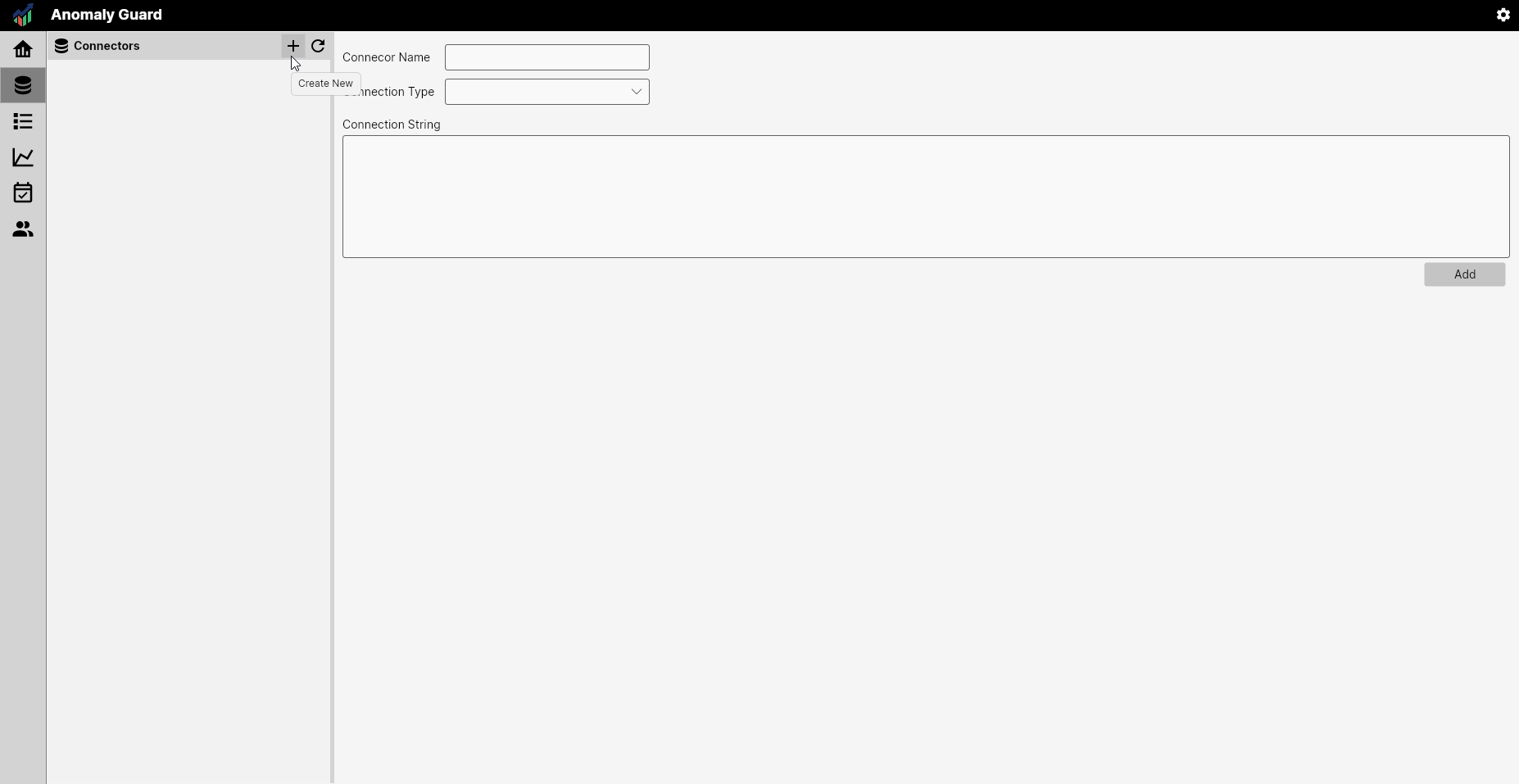
To create a new connector, click the Plus (+) icon in the sidebar and define the connector properties.
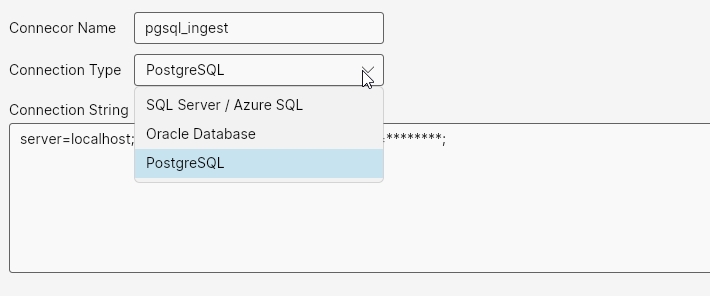
Each connector requires three parameters:
-
Connector Name – Defines the display name under which the connector will be available.
The naming convention is up to the user; internally we recommend the format:
connection_type + source_system -
Connection Type – Specifies the type of data source.
Currently supported: * Oracle * Microsoft SQL Server / Azure SQL * PostgreSQL
Note
New connector types are being added continuously. If a specific data source is missing, please contact our team to request priority support.
- Connection String – Defines the actual connection parameters. Below are sample connection strings for each supported database type.
| Database Type | Sample Connection String |
|---|---|
| Oracle | Data Source=(DESCRIPTION=(ADDRESS_LIST=(ADDRESS=(PROTOCOL=TCP)(HOST=oracle-server)(PORT=1521)))(CONNECT_DATA=(SERVER=DEDICATED)(SERVICE_NAME=ORCL)));User Id=myUser;Password=myPassword; |
| Microsoft SQL Server | Server=sqlserver-host,1433;Database=MyDatabase;User Id=myUser;Password=myPassword;Encrypt=True;TrustServerCertificate=True; |
| PostgreSQL | Host=pgsql-host;Port=5432;Database=MyDatabase;Username=myUser;Password=myPassword;SSL Mode=Require;Trust Server Certificate=True; |

Connection Timeout
When defining a connector, it is recommended to explicitly set a higher connection or command timeout in the connection string. In some cases, executing the SQL query and transferring data can take longer than the default timeout value, which may cause connection failures or incomplete data loading. Before saving the connector configuration, test the query execution time and adjust the timeout accordingly. The timeout value is defined in seconds (for most ADO.NET providers, the parameter is Connection Timeout or Command Timeout).
Example:
Server=sqlserver-host,1433;Database=MyDatabase;User Id=myUser;Password=myPassword;Connection Timeout=120;
(sets the timeout to 120 seconds)
Connector Storage and Security
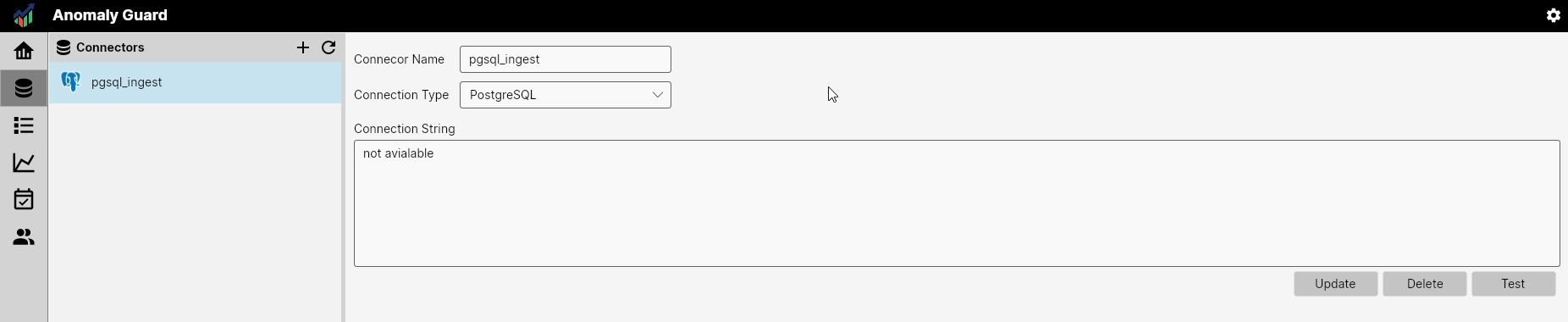
After defining all parameters, click Add. The connector is securely stored in the system database in encrypted form. When refreshing the list of connectors using the Refresh button, connectors are reloaded from the database — but the connection string itself is never displayed again.
Security Note
All connection strings are stored in an encrypted format. The application never exposes them in plain text through the GUI or API. Only the backend service can access the decrypted connection string when loading data. Therefore, if you need to update a password or any connection property, you must re-enter the entire connection string.
Testing Connectors
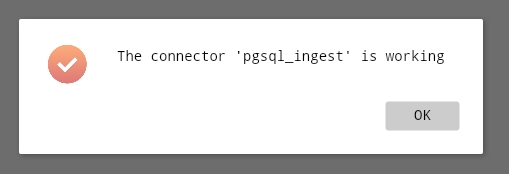
Once saved, a connector can be validated by clicking the Test button. The application will attempt to open a connection to the target database: - On success, a confirmation message is displayed. - On failure, an error message with connection details is shown.
Next Steps
Repeat this process to define connectors for all relevant data sources you intend to analyze or monitor automatically using AnomalyGuard.
In the next step, you will define Data Views, which utilize these connectors.