License
After installing the AnomalyGuard tool, you can launch the GUI application. The interface is fully functional—you can define connectors, create data views, import input data, and set up filters. The only restricted feature without a license is data analysis execution.
To enable analysis, a valid license is required. The license defines the capabilities available in AnomalyGuard. Depending on your license type, you can define a maximum number of data views and users.
With an Enterprise License, you can also deploy multiple application instances to distribute workloads.
Note
For testing purposes, you can obtain a Demo License. It provides full functionality for a limited time. To obtain one, please contact our support team.
License Activation
To activate a license, log in to the application as an Administrator (using an existing admin account or the Demo Admin account; see Users Administration for details).
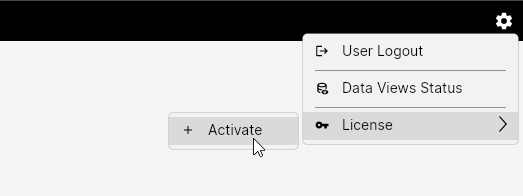
Once logged in, open the top-right menu and select License > Activate.
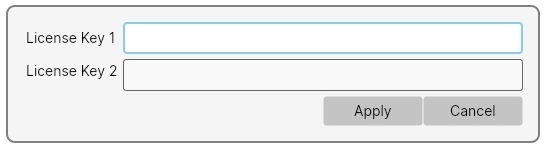
In the dialog window, enter your two license keys and click Apply.
The system will then verify your license via the AnomalyGuard API.
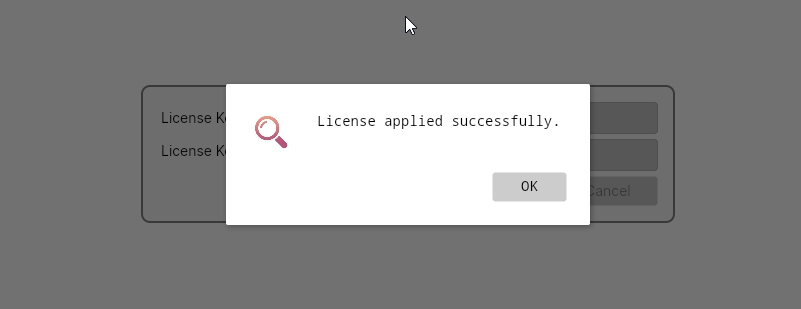
If the keys are correct and the license is valid, full functionality is activated and the administrator is notified of the successful activation.
Warning
The application requires access to the API endpoint https://api.anomalyguard.com for license verification. Validation is performed periodically, not just once, allowing real-time adjustments to license parameters (e.g., increasing user or data view limits, extending license validity).
License Deactivation
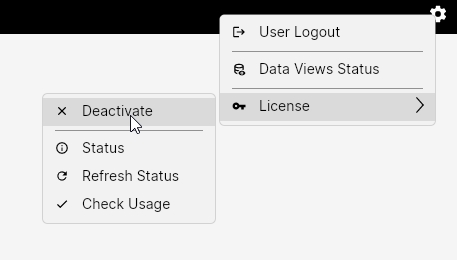
To deactivate a license, open the top-right menu and select License > Deactivate.
This option is only visible to administrators.
Enter both license keys again and click Apply to confirm deactivation.
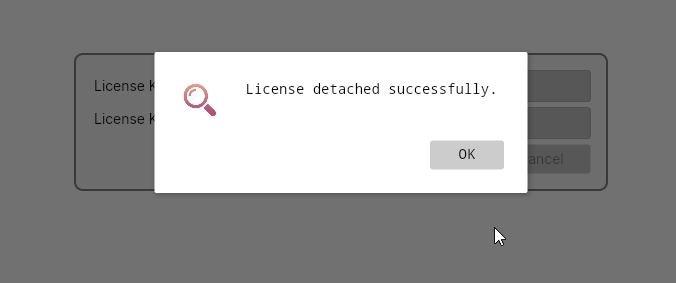
License Management
When a license is active, several new menu options become available.
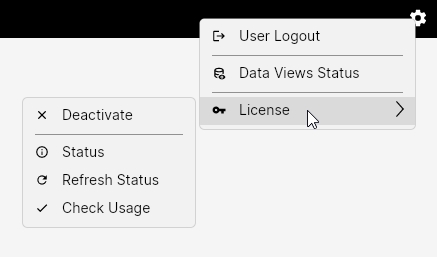
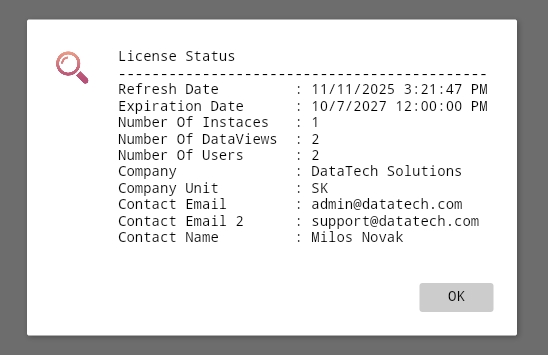
- Status – Displays license details such as last verification time, expiration date, maximum allowed data views and users, and customer information.
If your license has been upgraded (e.g., to a higher tier), these updates will synchronize automatically during the next refresh. To apply changes immediately, select Refresh Status.
- Check Usage – Verifies that the current configuration complies with the license terms.
For example, if new data views were added directly in the database beyond the allowed limit, the system will detect the issue.
Note
If a license violation occurs, automatic analysis is paused until resolved. The maximum number of users and data views counts only enabled items (where the Enabled flag is set to True). Disabled users or data views are excluded from this count.
For any questions regarding licensing, please contact the AnomalyGuard support team.
Data Connectors
After the license is successfully activated, you gain access to the Data Connectors configuration section. This module allows you to define and manage connections to external data sources from which analytical data will be retrieved. Each connector represents a specific system or database (e.g., Oracle, MS SQL Server, PostgreSQL, or REST API).