Monitoring
After you have defined your Data Views and configured detection functions in Analysis Setup, you should monitor the data load and analysis processes. Monitoring can be done in two ways: administrators can monitor global data loads and analysis status, and end users can view the status for the Data Views they have access to.
All Data Views
Administrators can view the current processing status for all Data Views by clicking Monitoring in the left-hand menu. The page shows a table with the status of all enabled Data Views.

Each Data View is identified by the first columns (id, group, name). The Last Data Import column shows the timestamp when data were last loaded into the application. The Series Start and Series End columns indicate the time range covered by the available data.
The Anomalies column displays how many anomalies have been identified in the Data View according to the configured detectors and across category combinations. The Jobs column shows the total number of analytical jobs for the dataset — this typically corresponds to the number of category combinations that AnomalyGuard will scan.
The Pending, Finished, and Failed columns report the current processing state. If Pending is greater than zero, some jobs are still being processed and the anomaly detection run is not yet complete.
Results in Progress
If processing is not finished, the currently displayed anomalies and their aggregates may be partially computed. For example, if 20% of jobs are in Pending, it means that 80% of the data are up to date while 20% still reflect results from the previous analysis run.
Updates are incremental, so data remain available at all times. Keep this in mind especially when analyses run infrequently (for example, weekly).
Available Data Views
End users without the administrator role can also view processing status. To do so, open the user menu in the top-right corner and select Data Views Status.
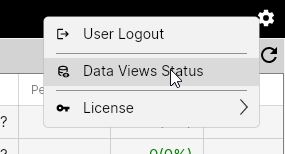
The dialog shows the current status but only for Data Views to which the user has access. If the user has no assigned access, the dialog will be empty.

After Data Views are assigned to the user, their status will appear in this dialog. This view is simplified compared to the administrator view.

You can now define and monitor Data Views. The final administrative step is user management — assigning Data View access to users.