Users
In the final section of the administrative interface you can manage users — edit accounts and assign Data View access. To add a new user, click the plus button in the left-side panel.

Users in a new AnomalyGuard installation
A freshly deployed application contains no users. To add users you must be logged in as an administrator. For initial setup on an empty installation you can use the provided "demo" accounts. These demo accounts work only until another user is added to the application.
To log in with the administrator role use the account admin@email.com. To sign in as the demo user use user@email.com. The password for both accounts is password.
Steps to add the first user:
- Log in using
admin@email.com. - Add a new user and set Is Admin and Is Enabled to TRUE.
After adding the first real administrator, sign in with that account — demo accounts will no longer be active. Add the first administrator immediately after installing AnomalyGuard.
The list of all users is visible in the left-side panel. A user can be in different states depending on the Is Admin and Is Enabled settings. Admin users are shown in bold; regular users use the normal font. The Is Enabled setting controls whether the user is active — i.e., allowed to sign in and use the application. Disabled users appear greyed out in the list.
Disabled Users
If your license limits the number of users, the limit applies to "enabled" users (active users) only.
When creating a user, set their password in the Password field. The password is not displayed again after creation. When updating a user, the existing password is preserved if the password field is left empty. To change the password, enter a new value in the field and click Update.
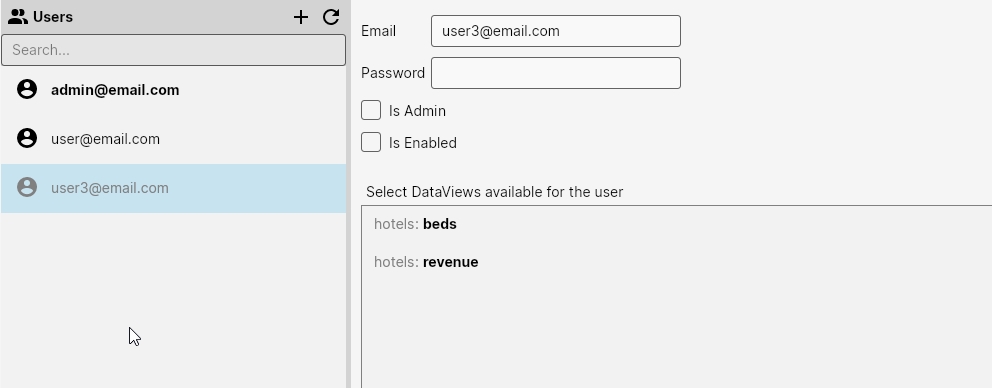
In the Selected DataViews available for the user section you can assign Data Views to the user. After selecting the Data Views and clicking Update, the chosen Data Views become available to the user for anomaly analysis.
The images below illustrate the difference between the administrator interface and the regular user interface.

Administrators see the full interface for defining connectors, Data Views, monitoring, and user management. They also have expanded options in the top-right menu. Regular users have access only to the homepage where they can view and analyze Data Views that have been assigned to them.

For information on viewing and analyzing results, see the User Guide. That section describes AnomalyGuard from the perspective of a typical business user.